
Resize & positioning
Put WallCal anywhere on your desktop and resize it to fit your workflow perfectly.
WallCal puts a beautiful, fully customizable calendar on your Mac wallpaper — so you never miss what's next.
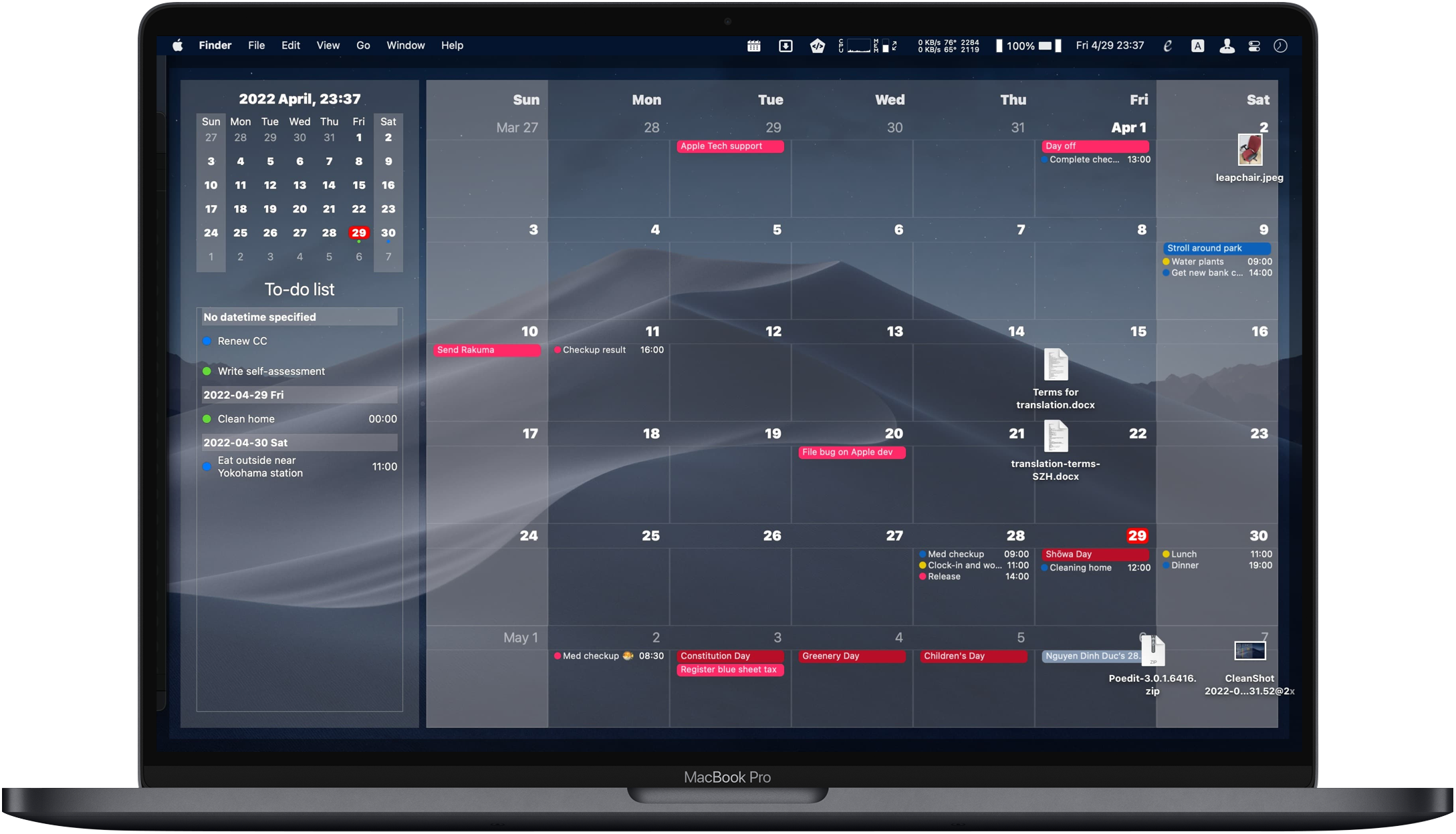
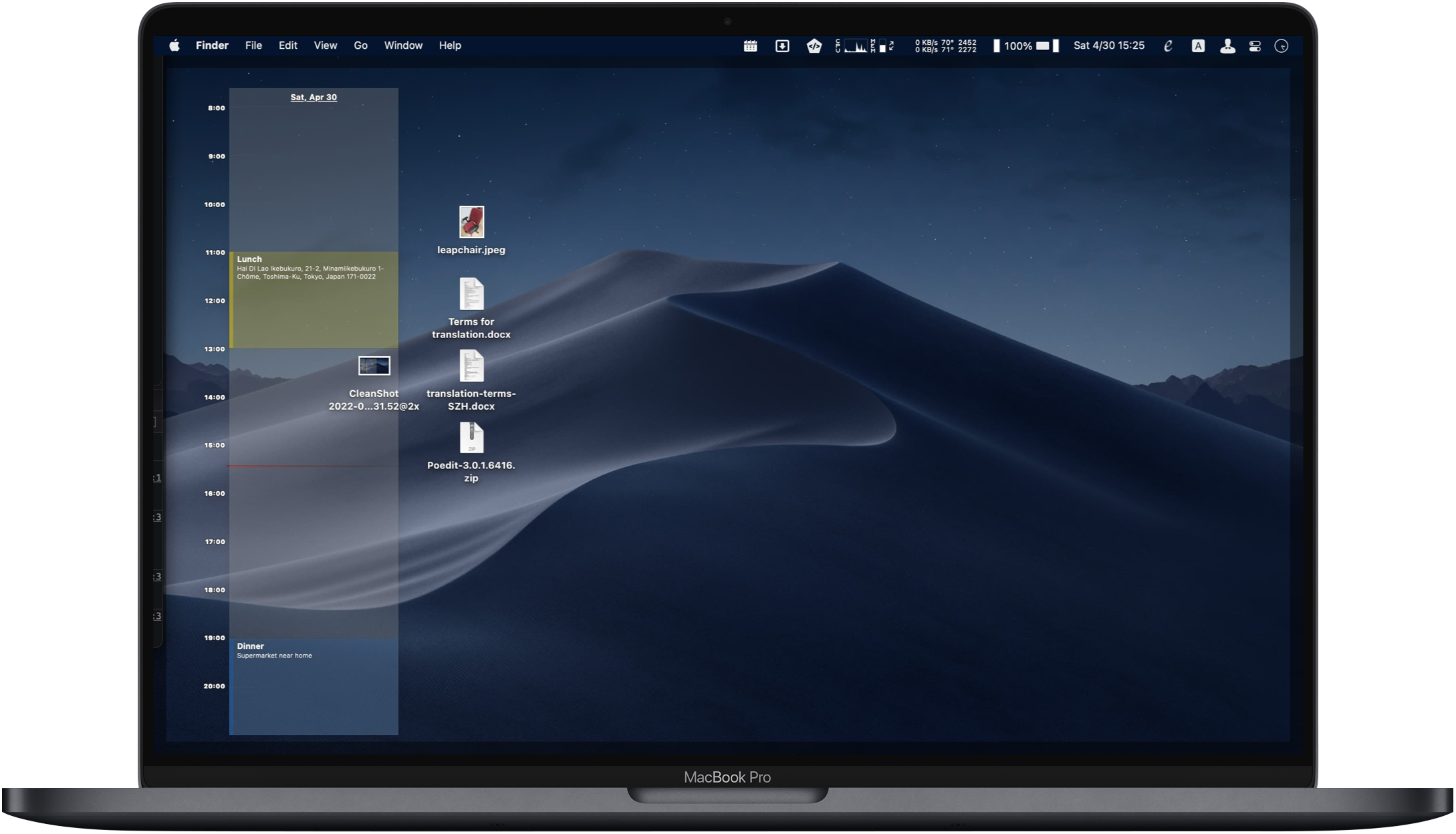
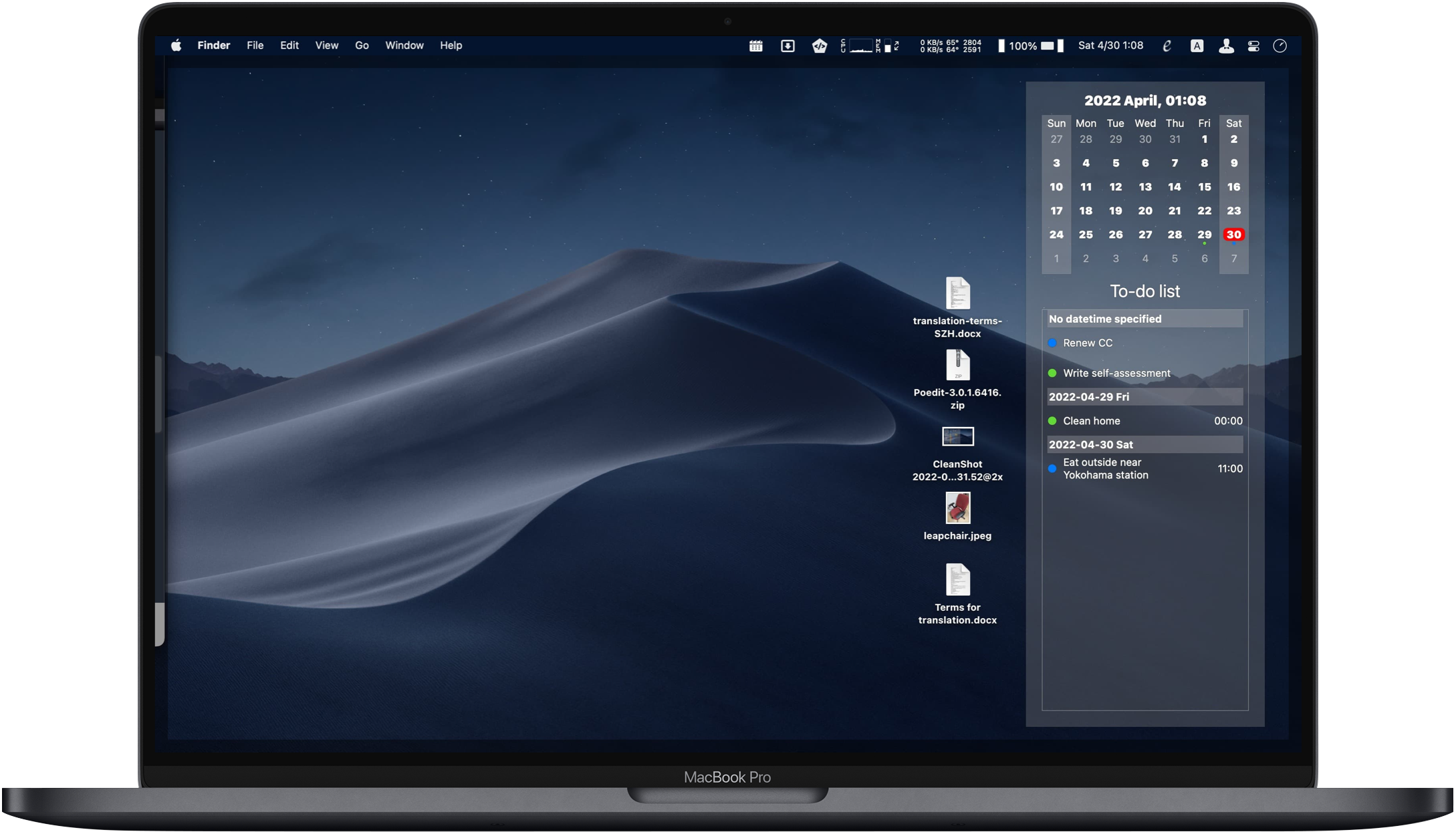
Put WallCal anywhere on your desktop and resize it to fit your workflow perfectly.
Display events from all your calendars — iCloud, Google, Exchange, and more — in one view.
Show WallCal on any connected display, or have different layouts on each screen.
Choose fonts, colors, opacity, and layout to match your wallpaper and style.
Glance at your schedule from the menu bar without switching away from your current app.
Navigate months, toggle views, and control WallCal entirely from your keyboard.
Please verify if you’re signing in to the Mac App Store with the Apple ID you used to make the in-app purchase.
Please go to System Preferences > Internet Accounts and sign in to your Google/Microsoft account, and enable Calendar/Reminder inside each account afterwards.
Currently, WallCal offers features as distinct add-ons, which necessitate a one-time in-app purchase for lifetime access. New features may be introduced as separate add-ons and sold individually. For Setapp users, WallCal is available at no extra cost.
Please check if you already granted calendar or reminder access permission to WallCal in System Preferences > Security & privacy > Calendar (or Reminder)
For now we cannot offer in-app free trial, but you can take a look at each add-on’s feature description and preview before making purchase! Alternatively you can try WallCal for free through Setapp (please scroll up to see the Setapp link). Please contact us at [email protected] if you still have any question or concern.
Unfortunately, WallCal doesn’t support these actions at the moment. Please use Apple’s stock Calendar/Reminder app, or any other 3rd party apps which support this function to manipulate calendar events/reminders.
Yes! When you reposition WallCal (see “How can I reposition WallCal?”) you can drag it to the destination monitor to place it there.
After putting it in frontmost state (by using “Toggle calendar frontmost state” function), click on anywhere inside the calendar and drag to reposition, like how you do to position windows.
After putting it in frontmost state (by using “Toggle calendar frontmost state” function), hover on the pink border and drag to resize like how you do to resize windows.
Look for the WallCal icon in the menubar. That is the entry to all WallCal settings.